
Interactive Image Maker: Add Clickable Hotspots to Any Image
Add clickable hotspots, tooltips, quizzes, and product tags to any image. Publish it to your site or share it anywhere. No code required.




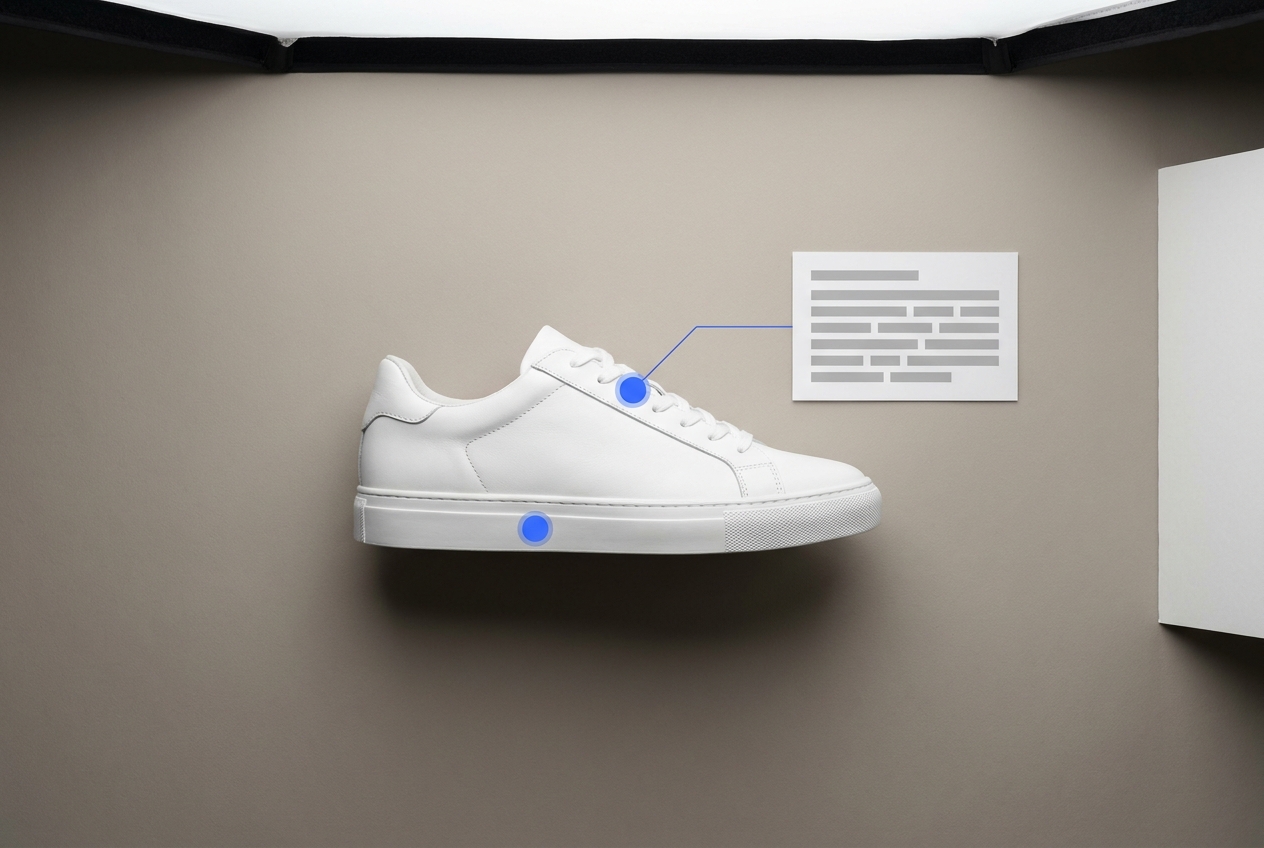
Why Use an Interactive Image Maker?
Higher Engagement
Clickable images hold attention longer than static ones. Viewers stay to explore each hotspot.
Boost Conversions
Tag products with links or add-to-cart buttons so buyers act without leaving the image.
Explain In Context
Surface specs, instructions, or tips inside tooltips. The image stays uncluttered until a viewer needs more info.
No Code Required
You build and publish everything by dragging elements around, so no design or development background is required.
Works Everywhere
Embed it on your website, drop it into an email, or share it on social media. The same image works in every channel.
Top Features of KappaX Interactive Image Maker

Image Hotspots on Any Spot
- Link to a product page, URL, or anchor on the same page
- Open a popup with text, images, or an embedded form
- Use on product photos, floor plans, or interactive infographics
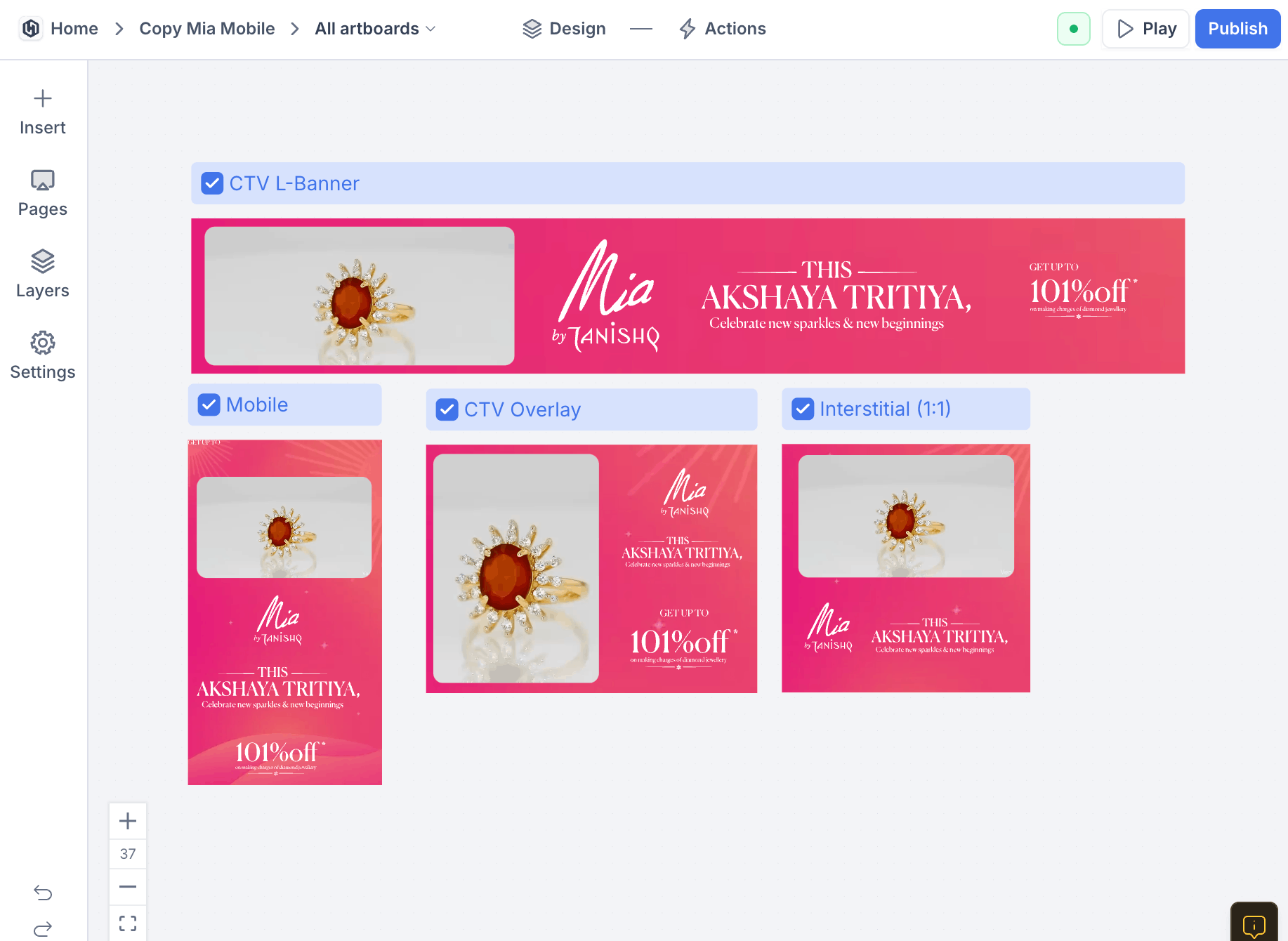
Drag and Drop Everything on One Canvas
- Resize and reposition hotspots and popups visually
- Style colors, fonts, and borders without writing code
- Undo, redo, and duplicate any element in one click
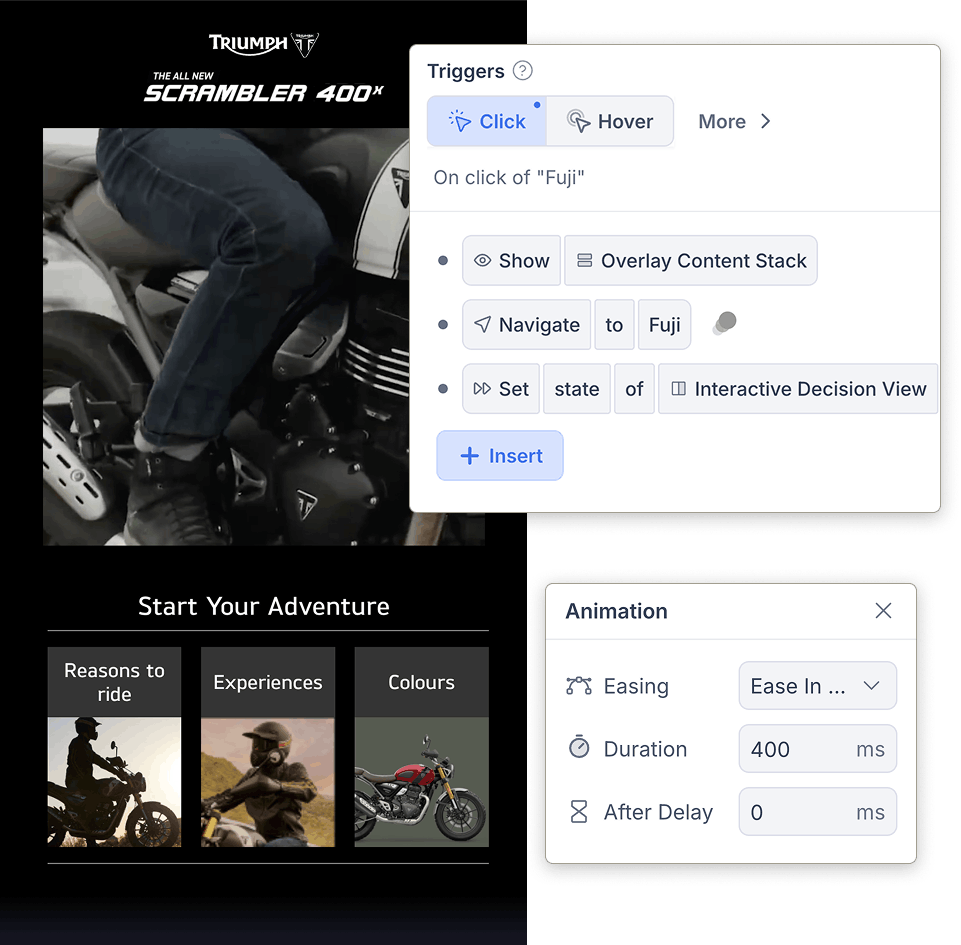
Tooltips and Popups That Open on Click
- Show pricing, dimensions, ingredients, or any custom content
- Choose between hover-to-open and tap-to-open behavior
- Add images, buttons, or links inside the popup itself
Mini Quizzes and Decision Paths on Images
- Run product finders or diagnostic flows on a single picture
- Attach a lead capture form to any hotspot
- Show a different result depending on the answers
AI Agents That Edit With a Prompt
- Remove backgrounds or extend the canvas to fit a new layout
- Replace a single object without regenerating the whole image
- Second agent generates graphics for popup content
Click and Attention Tracking for Every Hotspot
- See click count and click-through rate per hotspot
- Measure time spent on each popup
- Identify which hotspots get ignored so you can reposition them
Interactive Image Examples & Use Cases
Shoppable lookbooks
Tag every product in a styled photo. A shopper taps the lamp in a living room shot, sees the price, and clicks through to buy it, all without hunting through your catalog.
Product diagrams
Pin specs and explanations to the parts of a technical drawing or product photo. The image stays clean, and detail appears only when someone asks for it.
Floor plans and maps
Real estate agents annotate floor plans with room dimensions and photos. Event organizers do the same with venue maps, linking each booth or stage to its schedule.
Interactive infographics
Attach sources, definitions, or a quiz question to each data point. Readers who want depth can click for it while everyone else gets the summary at a glance.

Upload Any Image
Bring a JPG, PNG, or SVG. A product shot, floor plan, or infographic all work.
Pin Hotspots Where It Matters
Drag hotspots onto the exact spots you want people to explore.
Attach Popups, Links, or Quizzes
Give each hotspot its action: a rich popup, a link, a form, or a mini quiz.
Publish and See What Gets Clicked
Embed it anywhere, then watch per-hotspot clicks show you what draws attention.


Frequently asked questions
What is an interactive image?
An image with clickable hotspots. Viewers click a hotspot to see a tooltip, open a link, or answer a quiz question.
How do I make a clickable image?
Upload your image to KappaX, drag hotspots onto the areas you want to make clickable, and attach a link, popup, or form to each one. Publish and embed the clickable image with a single snippet.
Can I use it for e-commerce?
Yes. Tag products in the image with a link to the product page or an add-to-cart button.
Do I need any coding skills?
No. KappaX has a drag-and-drop editor with AI agents that can generate overlay graphics and suggest hotspot placements. Position hotspots by dragging them onto the image and edit popups in place.
What image formats can I upload?
JPG, PNG, and SVG. You can also start from a template and swap in your own image.
Can I capture leads from an image?
Yes. Attach a form to any hotspot. A viewer clicks, fills in their details, and the submission appears in your analytics dashboard.
Where can I use these images?
Embed them on websites, blogs, and landing pages. You can also share via email or social media.
Will it work on mobile?
Yes. Interactive images resize to fit any screen, and hotspots remain tappable on mobile.
What is an image hotspot?
A clickable spot pinned to part of an image. Tapping it opens a tooltip, popup, link, form, or mini quiz.
Can I make an interactive infographic?
Yes. Upload the infographic and attach a source, definition, or quiz question to each data point as a hotspot.
Can I embed an interactive image in WordPress?
Yes. Paste the embed snippet into a Custom HTML block, or share the image as a link.



Learn more: ThingLink alternative